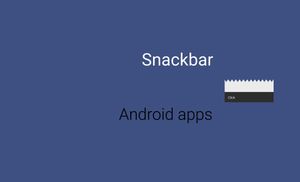
In this post we will talk about Snackbar.
Snackbars provide lightweight feedback about an operation by showing a brief message at the bottom of the screen. Snackbars can contain an action.
Firstly need to add library or add dependency for gradle.
dependencies {
    compile 'com.android.support:design:22.2.0'
}
You can use Snackbar without Action:
Snackbar
    .make(
        findViewById(R.id.root),
        "Click",
        Snackbar.LENGTH_SHORT
    )
    .show();
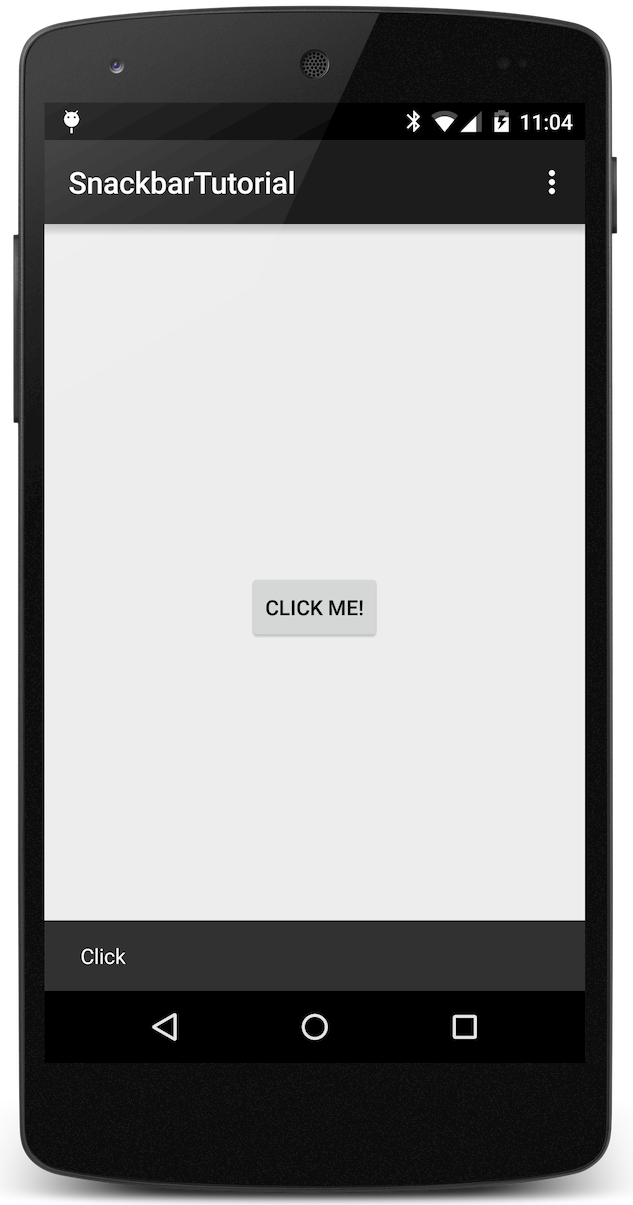
If you want add to action to Snackbar you must use setAction function:
Snackbar
    .make(
        findViewById(R.id.root),
        "Click",
        Snackbar.LENGTH_SHORT
    )
    .setAction(
        "UNDO",
        new View.OnClickListener() {
            @Override
            public void onClick(View v) {
                // action
            }
        }
    ).show();
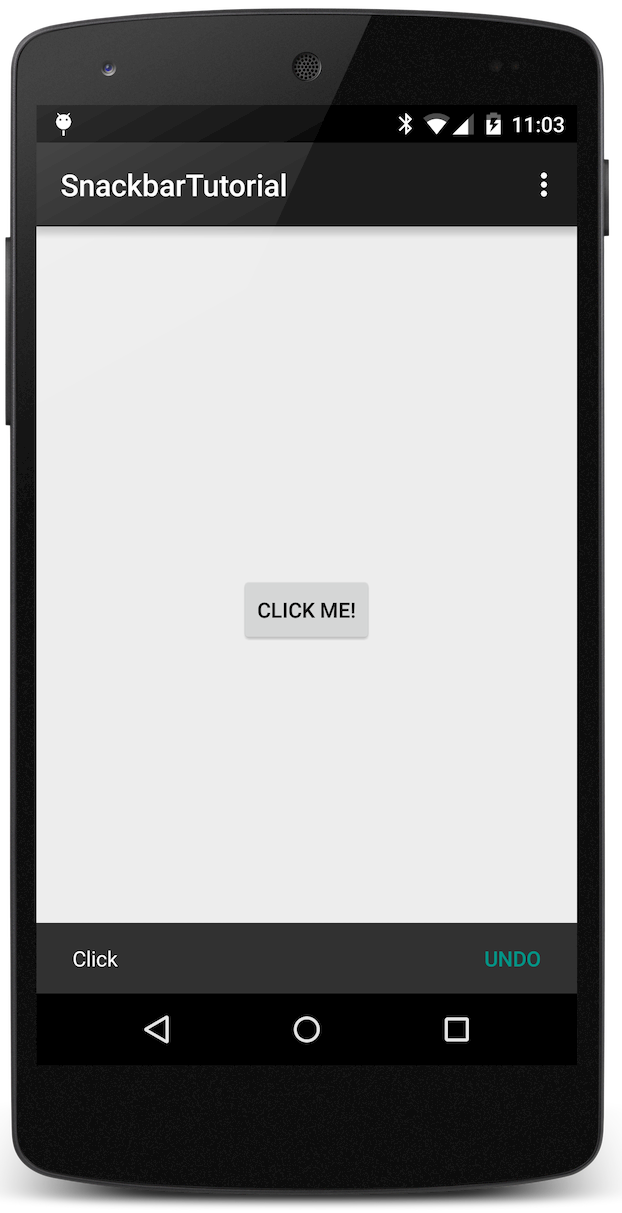
Layout file for this project
<RelativeLayout xmlns:android="http://schemas.android.com/apk/res/android"
    xmlns:tools="http://schemas.android.com/tools"
    android:layout_width="match_parent"
    android:layout_height="match_parent"
    android:paddingLeft="@dimen/activity_horizontal_margin"
    android:paddingRight="@dimen/activity_horizontal_margin"
    android:paddingTop="@dimen/activity_vertical_margin"
    android:paddingBottom="@dimen/activity_vertical_margin"
    tools:context=".MainActivity"
    android:id="@+id/root">

    <Button
        android:id="@+id/button"
        android:text="Click me!"
        android:layout_width="wrap_content"
        android:layout_height="wrap_content"
        android:layout_centerVertical="true"
        android:layout_centerHorizontal="true" />
</RelativeLayout>
Certainly better way is to move "Click" and "UNDO" strings to strings.xml and use link like R.string.undo_label.